
Self-Hosted Bitbucket Runners: Setup, Cost and Fixes
Self-hosted Bitbucket runners let you run Bitbucket Pipelines builds on machines you control instead of Atlassian's cloud infrastructure. You install a small runner agent on your own server, tag it with labels, and point specific pipeline steps at it with runs-on. The payoff is real: build minutes used by self-hosted runners aren't billed against your Pipelines quota, you can use bigger machines and warmer caches, and you can reach private resources inside your own network. The one tax nobody warns you about is disk space — a busy runner quietly fills up with old caches and images until builds fail. This guide walks through the setup end to end, works through the symptoms when a runner stops picking up jobs, shows the weekly cleanup job that keeps it healthy, covers how to harden the host, and helps you decide which steps belong on self-hosted runners at all.
What Are Self-Hosted Bitbucket Runners?
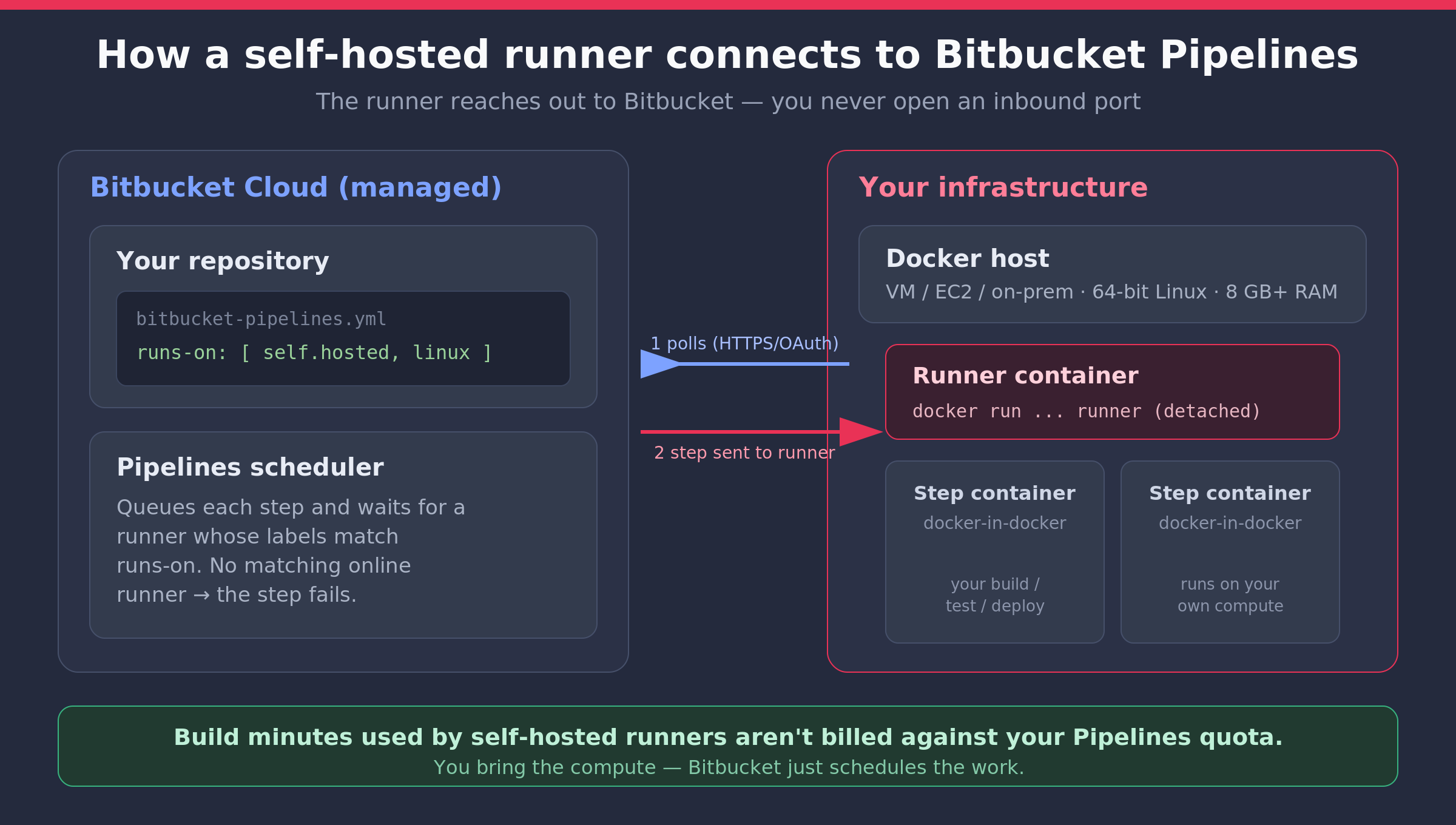
A runner is an agent that executes your pipeline steps. With Bitbucket's cloud runners, Atlassian supplies the compute. With self-hosted runners, you supply it — a VM, an EC2 instance, a bare-metal box, or a low-cost ARM machine. The runner connects outbound to Bitbucket, polls for work that matches its labels, runs the step, and streams logs back. You never have to open an inbound port.
Bitbucket offers several runner types:
- Linux Docker (x86_64 or arm64) — the most common; each step runs in a Docker container on your host.
- Linux Shell — runs steps directly on the host shell, without Docker-in-Docker.
- Windows and macOS — for platform-specific builds (an iOS build, for example, needs macOS).
Most teams start with a Linux Docker runner because it mirrors how cloud Pipelines already behaves.
Why Run Your Own Bitbucket Runners?
Self-hosting isn't only for large enterprises. The usual reasons:
- Lower CI cost. Build minutes consumed by self-hosted runners aren't billed against your Pipelines build-minute quota — you bring your own compute. For teams with long or frequent builds, that's the headline saving.
- Bigger, faster machines. Need 16 GB of RAM, a GPU, or a large disk for a monorepo build? Size the host however you like instead of being capped by cloud step sizes.
- Warm caches and artifacts. Because the host persists between builds, dependency caches and Docker layers can stay warm, cutting build times.
- Access to private resources. A self-hosted runner can reach databases, package registries, or staging servers that live inside your own VPC or network.
- Cheaper ARM compute. Linux ARM runners let you use cost-efficient arm64 instances for compatible workloads.
Keep in mind there can be a separate per-runner or per-build-slot licensing cost on some Bitbucket plans, distinct from build minutes — check Atlassian's current runner pricing for your tier.
How Much Does a Self-Hosted Bitbucket Runner Cost?
The runner agent itself is free — what you pay for is the host it runs on and the time it takes to keep that host healthy. For teams with long or frequent builds, the total is usually a fraction of the equivalent cloud build minutes, which is why the maths tips so quickly. Budget for four things:
- Compute. A modest cloud VM — around 2 vCPUs and 8 GB of RAM — comfortably runs a single Linux Docker runner. ARM instances are typically the cheapest option for compatible workloads.
- Disk. Be generous here: 50 GB or more of storage costs little and prevents the "no space left on device" failures covered below. When in doubt, scale disk before CPU.
- Plan licensing. Some Bitbucket plans carry a per-runner or per-build-slot cost separate from build minutes — check Atlassian's pricing for your tier before you commit.
- Maintenance time. Patching, monitoring, and cleanup are the hidden line item. It's the same build-vs-buy trade-off you'd weigh for any software: the hardware is cheap, but someone has to own it.
A sensible starting size is one runner on a 2 vCPU / 8 GB / 50 GB host; add runner containers or hosts only when steps start to queue. Build and release infrastructure is one of the quieter line items in any product budget — it appears in our breakdown of what it costs to build a mobile app as exactly the kind of cost teams discover in month three rather than planning for in month one.
How Do You Set Up a Self-Hosted Bitbucket Runner?
Here's the end-to-end flow for a Linux Docker runner. Atlassian's setup guide for Linux runners covers every option, but these are the steps that matter.
1. Prepare the host. You need a 64-bit Linux machine with Docker installed and at least 8 GB of RAM (allocate a minimum of 512 MB to the runner container itself, and more for heavy builds). Atlassian also recommends disabling swap and setting vm.swappiness = 1, because swap can make builds run out of memory non-deterministically.
2. Open the runner dialog. In Bitbucket, go to your repository's Settings → Runners → Add runner (you can also add workspace-level runners that any repo can use). Under System and architecture, choose Linux Docker (x86_64) or Linux Docker (arm64).
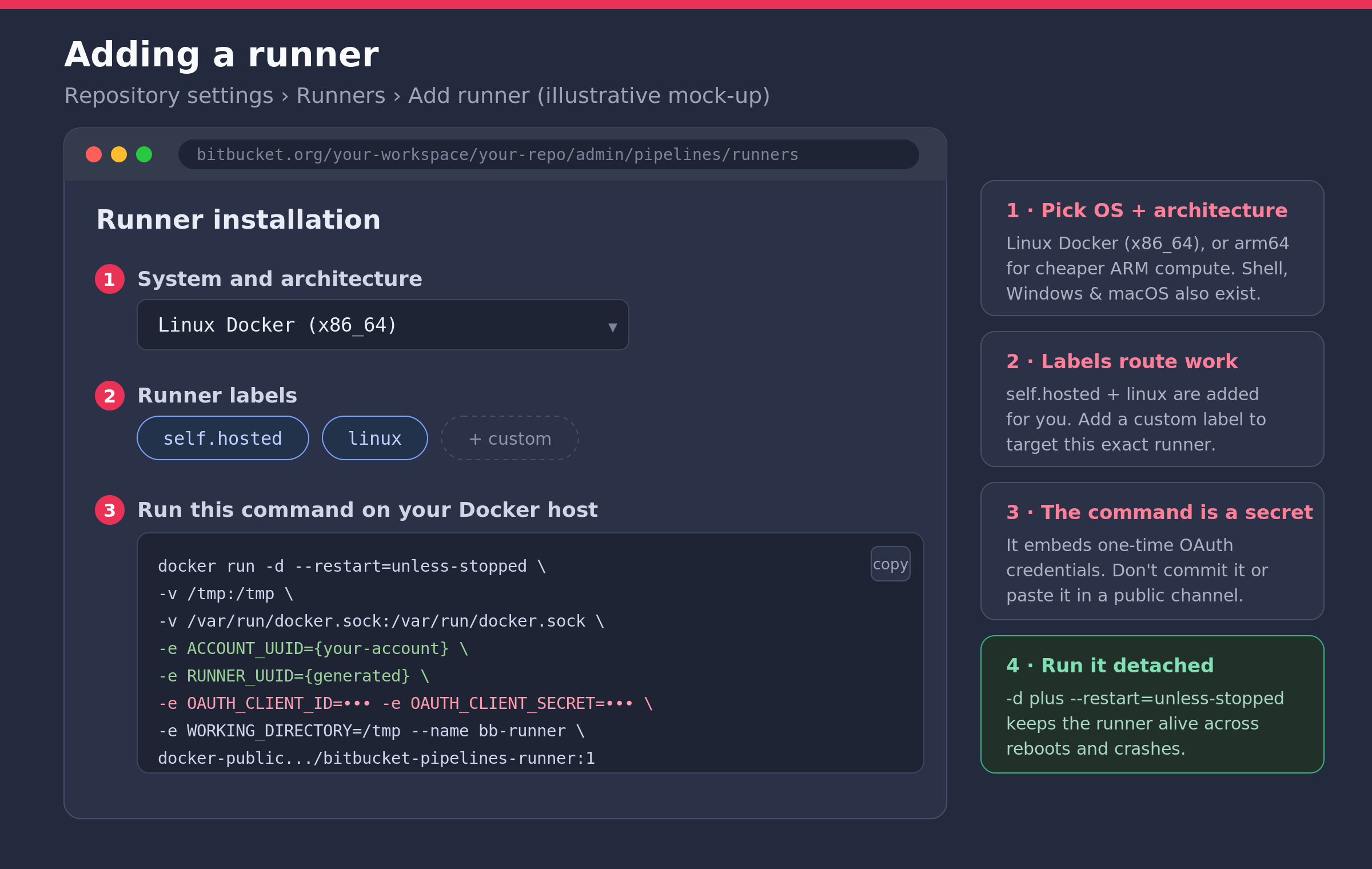
3. Copy the command. Bitbucket generates a docker run command containing one-time OAuth credentials that authenticate this runner to your account. Treat it like a secret — don't commit it to the repo or paste it in a public channel.
4. Start the runner detached. Paste it on your host, but swap the interactive -it flags for -d and add --restart=unless-stopped so the runner survives reboots and crashes:
docker run -d --restart=unless-stopped \
  -v /tmp:/tmp \
  -v /var/run/docker.sock:/var/run/docker.sock \
  -e ACCOUNT_UUID={your-account-uuid} \
  -e RUNNER_UUID={generated-uuid} \
  -e OAUTH_CLIENT_ID=*** \
  -e OAUTH_CLIENT_SECRET=*** \
  -e WORKING_DIRECTORY=/tmp \
  --name bb-runner \
  docker-public.packages.atlassian.com/sox/atlassian/bitbucket-pipelines-runner:1
5. Confirm it's online. Back in the Runners list, the runner should flip to Online. It's now ready to pick up work.
How Do You Run a Pipeline Step on the Runner?
Setting up a runner doesn't move any builds onto it automatically. You opt each step in with a runs-on block in bitbucket-pipelines.yml. A runs-on list must include the self.hosted label, plus whatever labels match your runner. Bitbucket adds linux for Docker runners, linux.shell for shell runners, linux.arm64 for ARM, windows, or macos automatically:
pipelines:
  default:
    - step:
        name: Build and test
        runs-on:
          - self.hosted
          - linux
        script:
          - npm ci
          - npm run build
          - npm test
The scheduler sends the step to the next available runner that has all the listed labels. If no online runner matches every label, the step fails — so make sure the labels in your YAML exactly match the labels on the runner. Add a custom label such as gpu or bigdisk when you want to target one specific machine. Atlassian documents the full syntax in configuring your runner in bitbucket-pipelines.yml.
How Do You Run Multiple Runners on One Host?
One runner executes one step at a time. The moment you have parallel steps, or two people push within the same minute, builds start queuing behind each other. The fix isn't a bigger machine — it's more runner agents.
Each extra runner needs its own UUID and credentials, so generate a new runner in Bitbucket's Settings → Runners for each agent, then give each container a distinct name and working directory. A small docker-compose.yml keeps them manageable:
services:
  runner-1:
    image: docker-public.packages.atlassian.com/sox/atlassian/bitbucket-pipelines-runner:1
    restart: unless-stopped
    environment:
      ACCOUNT_UUID: "{your-account-uuid}"
      RUNNER_UUID: "{runner-1-uuid}"
      OAUTH_CLIENT_ID: "${RUNNER_1_CLIENT_ID}"
      OAUTH_CLIENT_SECRET: "${RUNNER_1_CLIENT_SECRET}"
      WORKING_DIRECTORY: "/data/runner-1"
    volumes:
      - /data/runner-1:/data/runner-1
      - /var/run/docker.sock:/var/run/docker.sock
  runner-2:
    image: docker-public.packages.atlassian.com/sox/atlassian/bitbucket-pipelines-runner:1
    restart: unless-stopped
    environment:
      ACCOUNT_UUID: "{your-account-uuid}"
      RUNNER_UUID: "{runner-2-uuid}"
      OAUTH_CLIENT_ID: "${RUNNER_2_CLIENT_ID}"
      OAUTH_CLIENT_SECRET: "${RUNNER_2_CLIENT_SECRET}"
      WORKING_DIRECTORY: "/data/runner-2"
    volumes:
      - /data/runner-2:/data/runner-2
      - /var/run/docker.sock:/var/run/docker.sock
Some sizing rules of thumb:
- Give each concurrent runner its own headroom. Roughly 2 vCPUs and 4–8 GB of RAM per runner is a safe starting point; two runners on a 2 GB box will thrash rather than go faster.
- Separate the working directories. Sharing one directory between agents causes confusing, hard-to-reproduce build collisions.
- Keep credentials out of the compose file. Put the OAuth client IDs and secrets in an
.envfile or your secrets manager, and never commit them. - Split by workload, not just by count. A
bigdiskorgpulabel on one machine plus generic runners elsewhere routes heavy steps precisely, instead of over-provisioning everything. - Scale on evidence. If steps rarely queue, a second runner is idle cost. Watch queue time before adding capacity.
Why Isn't My Bitbucket Runner Picking Up Jobs?
Almost every self-hosted runner failure comes down to one of six causes: the runner is offline, the labels don't match, every runner is busy, the disk is full, Docker isn't reachable, or the host ran out of memory. Work through the symptoms — each has its own fix.
- The runner shows "Offline" in Bitbucket. The agent container has stopped or lost its outbound connection. On the host, run
docker ps -ato confirm the container is up; if it exited,docker logs bb-runnerusually names the reason. Runners connect outbound over HTTPS, so a firewall or proxy blocking egress to Atlassian's domains also shows up as offline. Starting the container with--restart=unless-stoppedprevents most of these. - The step fails immediately, or reports no matching runner. Every label in the step's
runs-onlist must exist on an online runner. A typo, a missingself.hosted, or a custom label likebigdiskthat only one (currently offline) machine carries will strand the step. Compare the YAML against the runner's label list in Settings → Runners. - Steps queue behind one another. One runner executes one step at a time. If your pipeline has parallel steps, or several builds land at once, add more runner containers or hosts as described above — queuing is a capacity signal, not a fault.
- Builds fail with "no space left on device". The working directory has filled with old caches and images. That's the cleanup cron covered below.
- "Cannot connect to the Docker daemon", or permission denied. The runner container needs the host's Docker socket mounted (
-v /var/run/docker.sock:/var/run/docker.sock) and permission to use it. Re-check yourdocker runcommand against the one Bitbucket generated. - The step is killed mid-build with no clear error. Usually the host running out of memory. Give the runner container more memory, size the host up, and keep swap disabled with
vm.swappiness = 1so failures are deterministic rather than random.
If a step passes locally but fails only on the runner, the difference is nearly always environment rather than code: a missing system package, a different base image, or a cache that's stale on one host. Pin your base images and install dependencies from a lockfile — the same discipline that makes automated testing trustworthy in the first place.
Why Does a Self-Hosted Runner Run Out of Disk Space?
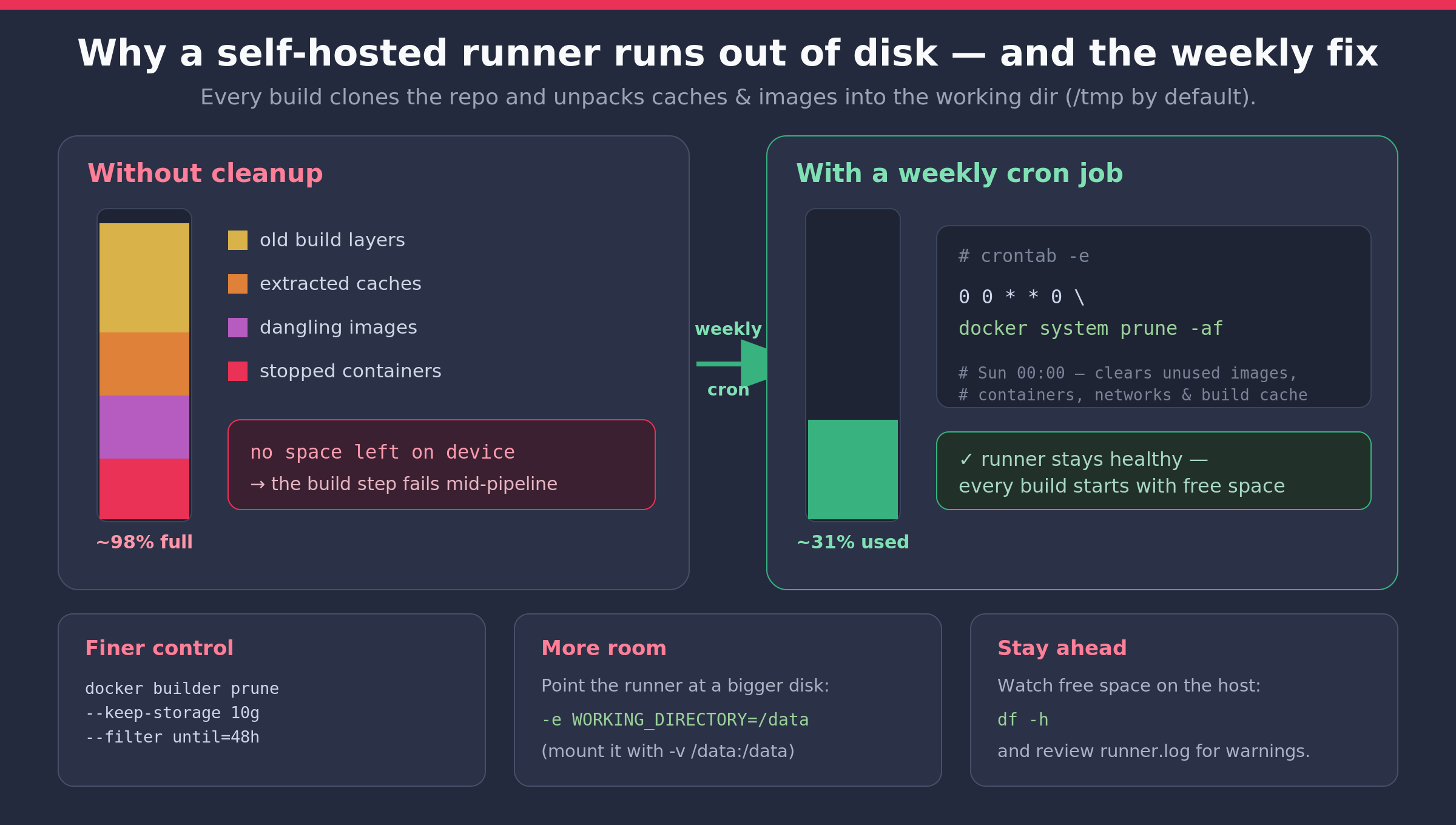
This is the problem most teams hit a few weeks in — and the one we ran into ourselves. Every build clones your repository and downloads caches, artifacts, and Docker images into the runner's working directory (/tmp by default for a Linux Docker runner). Nothing automatically cleans that up. Over many builds, old caches, dangling images, and stopped containers accumulate until the host hits:
no space left on device
…and the step dies mid-pipeline. It isn't a bug — it's simply the housekeeping the cloud used to do for you.
How Do You Stop the Disk Filling Up?
The fix is a scheduled cleanup. Atlassian's own recommendation is a cron job that prunes unused Docker data on a regular schedule, and a weekly job is plenty for most teams:
# crontab -e  (on the runner host)
0 0 * * 0 docker system prune -af
That runs every Sunday at midnight and removes unused images, stopped containers, networks, and build cache. If you build very frequently, run it nightly instead. For finer control, prune by age or size rather than clearing everything:
docker builder prune --keep-storage 10g --filter "until=48h" -f
A few more levers when space is tight:
- Move the working directory to a bigger disk by starting the runner with
-v /data:/data -e WORKING_DIRECTORY=/data. - Watch free space with
df -hon the host, and reviewrunner.logfor early warnings. - Right-size the disk up front — CI hosts are cheap insurance against 2 a.m. build failures.
That single weekly cron is what turns a flaky self-hosted runner into one you forget is even there.
What Should You Monitor on a Self-Hosted Runner?
Once you own the compute, you own the alerting too. A runner rarely announces that it's unwell — it just stops picking up work, and someone notices an hour later when a release is late. Four signals catch nearly everything:
- Disk usage. The single highest-value alert. Page yourself at 80% used on the working-directory volume, well before builds start failing.
- The agent container's state. Alert if the runner container isn't running, or if the runner has been offline in Bitbucket for more than a few minutes.
- Memory pressure and OOM kills. Check the host's kernel log for out-of-memory kills; they explain the "step died with no error" builds.
- Queue time, not just build time. If steps regularly wait before starting, you need more runners — see the sizing section above.
A basic node exporter and a handful of alert rules cover all four. If you already run observability for your production infrastructure, point it at the CI hosts too — they're production for your engineering team, and treating them as disposable pets is how a Friday deploy goes wrong.
Alerting only helps if it reaches someone who will act. A runner with no named owner degrades quietly, and "the build is broken" landing in a general chat channel is not an owner. Route CI alerts to a real queue with an assignee and an escalation path — the same intake-and-ownership discipline an enterprise service management platform applies to every other internal request. Teams without an in-house platform engineer often fold this into a broader IT consulting engagement rather than building the monitoring stack from scratch.
Are Self-Hosted Bitbucket Runners Secure?
A self-hosted runner is as secure as the host you put it on — and the default setup deliberately trades isolation for convenience. Running CI on your own hardware means you own its security too, and the threat model is specific: a build step executes arbitrary code from your repository, with whatever access the host happens to have. Seven practices cover the large majority of it:
- Use self-hosted runners with private repositories only. On a public repo, a malicious pull request can execute arbitrary code on your runner. This is the single most important rule, and there is no configuration that makes it safe.
- Understand what the Docker socket grants. The standard setup mounts
/var/run/docker.sockinto the runner container. Anything that can reach that socket can start a privileged container and mount the host filesystem — which is effectively root on the host, container boundary notwithstanding. That's an accepted trade-off for a dedicated CI box, but it is the reason a runner must never share a host with anything else you care about. - Isolate the host. A runner shouldn't sit next to production databases or hold standing credentials to critical systems. Treat it as untrusted and give it least-privilege access — if your CI hosts live inside a wider corporate network, a security review of what that machine can actually reach is an hour well spent.
- Keep secrets out of the host and the logs. Inject credentials as Bitbucket secured variables at step level rather than baking them into the host's environment or an
.envfile that every build can read. Scope deployment credentials to the narrowest role that works, prefer short-lived or OIDC-issued tokens over long-lived keys, and rotate anything a build has touched when someone leaves. - Restrict outbound network access. The runner only needs egress to Bitbucket, your package registries and your deployment targets. An allow-list on egress is one of the cheapest ways to limit what a compromised build can reach or exfiltrate.
- Prefer ephemeral or disposable hosts where you can, so every build starts clean and a compromise can't persist between builds. Warm caches and ephemerality pull in opposite directions — decide deliberately which one a given step needs rather than defaulting to persistent hosts everywhere.
- Keep it patched, and watch who can change the pipeline. You now own OS updates, Docker updates and runner-image updates — automate them. Then remember that
bitbucket-pipelines.ymlis code that runs on your infrastructure: require review on changes to it, and protect the branches that deploy.
The useful mental exercise is blast radius: assume a build is compromised, then ask what that build could read, write or reach. If the honest answer includes your production database or your cloud root credentials, fix the access before you worry about anything else on this list.
Self-Hosted vs. Cloud Runners: Which Should You Use?
Use cloud runners when you want zero maintenance and your builds sit comfortably inside your build-minute plan. Use self-hosted runners when builds are long or frequent, need lots of RAM, CPU or special hardware, must reach private network resources, or benefit from warm caches. It is not an either-or decision — runs-on lets you choose per step, and most teams end up running both.
Five things decide it, and it's worth being honest about each before you move a single step:
- Cost shape. Cloud runners bill build minutes against your plan, so you pay only when you build. A self-hosted host bills whether or not anything is running. Long, frequent builds tip the maths quickly; a handful of builds a week rarely does.
- Machine size. Cloud step sizes are capped. If a build genuinely needs 16 GB of RAM, a GPU, or a large disk for a monorepo checkout, self-hosting isn't an optimisation — it's the only route.
- Network reach. Only a self-hosted runner can talk to a database, internal package registry or staging server inside your own VPC without exposing it to the internet. If your integration tests need real internal services, that usually settles the argument.
- Cache warmth. A self-hosted host persists between builds, so dependency caches and Docker layers stay warm. On large JavaScript, Java or Docker-heavy builds this is often a bigger time saving than the extra CPU.
- Who gets paged. Cloud runners are Atlassian's problem. Self-hosted runners are yours — patching, disk, monitoring, and the 2 a.m. call when a release is blocked because a volume filled up.
That last point is the one teams underweight. The hardware is cheap; the ownership isn't, and a runner with no named owner degrades quietly until it fails at the worst moment. Decide who is accountable for the host before you migrate anything — it's the same build-versus-buy question you'd ask about any infrastructure, and a team's CI setup is one of the artefacts worth inspecting when you choose a software development company to build or run your pipelines. Keeping that infrastructure healthy is part of what a development partner actually does beyond writing features.
The hybrid pattern most teams settle on is worth copying rather than discovering the hard way:
- Leave the fast steps on cloud runners. Linting, unit tests and quick builds cost few minutes and benefit little from warm caches — and keeping them on cloud infrastructure means a runner outage never blocks a pull request.
- Route the expensive steps to self-hosted machines with
runs-on, starting with the single longest step in your pipeline. That's where the build-minute saving and the cache warmth actually live. - Label by capability, not by machine. A
bigdiskorgpulabel lets you move a step to different hardware later without editing every pipeline file. - Keep a cloud-only fallback path. Being able to comment out one
runs-onblock and ship while the host is down for patching turns an incident into an inconvenience. - Measure before you expand. Compare build minutes saved against the host's monthly cost after a month. If the numbers are close, you're paying for a VM to avoid a bill you weren't really paying.
Migrate one step, measure, then move the next. Teams that move an entire pipeline in one afternoon usually spend the following week discovering which steps quietly depended on a clean environment.
And if you'd rather not run CI infrastructure yourself at all, standing it up and keeping it healthy is exactly the kind of work our DevOps and cloud engineering team handles for clients — including from our engineering team in Bangalore, which keeps build and deployment pipelines running across client time zones.
Frequently Asked Questions
Do self-hosted runners use Bitbucket build minutes? No. Build minutes consumed by self-hosted runners aren't billed against your Pipelines minute quota — you supply the compute. Some plans may carry a separate per-runner or per-build-slot cost, so check current Atlassian runner pricing.
How much does it cost to run a self-hosted Bitbucket runner? The agent is free; you pay for the host (a 2 vCPU / 8 GB VM is enough for one runner), its disk, any per-runner cost on your Bitbucket plan, and the maintenance time to patch and monitor it. For long or frequent builds this usually undercuts cloud build minutes by a wide margin.
Should I use self-hosted or cloud Bitbucket runners? Use cloud runners when builds are short and infrequent and you want zero maintenance. Choose self-hosted when builds are long or frequent enough that build minutes hurt, when a step needs more RAM, CPU or disk than cloud step sizes allow, when the build must reach private network resources, or when warm caches would meaningfully cut build times. The deciding question is usually who will own the host, not which is technically better.
Can I use self-hosted and cloud runners in the same pipeline?
Yes, and it's the pattern most teams end up with. Steps with a runs-on block go to matching self-hosted runners; steps without one stay on cloud runners. Keeping fast steps like linting and unit tests on cloud infrastructure means a runner outage never blocks a pull request, while the long, expensive steps get the cost saving and warm caches.
What are the requirements for a Linux Docker runner?
A 64-bit Linux host with Docker installed, at least 8 GB of RAM (512 MB or more allocated to the runner container), and ideally swap disabled with vm.swappiness = 1.
How do I send only some steps to a self-hosted runner?
Add a runs-on block containing self.hosted plus the matching labels (like linux) to those specific steps. Steps without runs-on keep using cloud runners.
Why is my Bitbucket runner showing as offline?
The runner container has stopped, or it can't reach Bitbucket. Confirm it's running with docker ps, read docker logs bb-runner for the reason, and check the host can make outbound HTTPS connections through your firewall or proxy. Start it with --restart=unless-stopped so it recovers after reboots and crashes.
Why is my pipeline step stuck waiting for a runner?
Either no online runner carries every label in the step's runs-on list, or all matching runners are already busy with other steps. Check the labels match exactly — including self.hosted — then add runner capacity if steps queue regularly.
Why is my self-hosted runner failing with "no space left on device"?
The working directory (/tmp by default) has filled with old caches and Docker images. Add a cron job running docker system prune -af, and/or move the working directory to a larger disk.
Can I run multiple runners on one host? Yes. Register a separate runner in Bitbucket for each agent, then run one container per runner with its own UUID, credentials, and working directory — Docker Compose makes this tidy. Allow roughly 2 vCPUs and 4–8 GB of RAM per concurrent runner.
How many runners do we need? Start with one and watch how long steps wait before starting. If queue time is consistently more than a minute or two during the working day, add a runner. Parallel steps in a single pipeline each need their own runner to actually run in parallel.
How much maintenance does a self-hosted runner need? Less than teams fear, but never zero. Budget for a weekly disk-cleanup cron, periodic OS, Docker and runner-image updates, and a handful of alerts on disk, container state, memory and queue time. The real requirement is a named owner — an unowned runner degrades quietly until it blocks a release.
How do I monitor a self-hosted runner? Alert on disk usage (at around 80%), on the agent container not running or the runner showing offline in Bitbucket, on out-of-memory kills in the host's kernel log, and on step queue time. A node exporter plus a few alert rules covers all four. Route those alerts somewhere with a named assignee rather than a general chat channel.
How do I update a self-hosted Bitbucket runner?
Pull the latest runner image and recreate the container: stop and remove the old one, then re-run your docker run command with the newest bitbucket-pipelines-runner image. The runner connects outbound and keeps no state you can't recreate, so replacing the container between builds is safe — automate a periodic pull-and-restart to stay on patched versions.
Is it safe to mount the Docker socket into the runner?
It's the standard setup, but be clear about what it grants: any process that can reach /var/run/docker.sock can launch a privileged container and mount the host filesystem, which is effectively root on that machine. That's acceptable on a dedicated CI host running private repositories, and unacceptable on a box that also runs anything else you care about. Give the runner its own host, and don't rely on the container boundary for isolation.
How do you keep secrets safe on a self-hosted runner?
Inject them as Bitbucket secured variables scoped to the steps that need them, rather than storing them in the host environment or an .env file every build can read. Prefer short-lived or OIDC-issued deployment tokens over long-lived keys, scope each credential to the narrowest role that works, restrict the runner's outbound network access to the services it genuinely needs, and rotate anything a build has touched when a team member leaves.
Are self-hosted runners safe for open-source repositories? Not by default. Use them with private repositories; running untrusted pull requests from public repos on your own hardware is a serious security risk.
Build Your CI/CD With Silver Hamster
Self-hosted runners are a quick win, but a fast, reliable pipeline is the difference between shipping weekly and shipping daily. Silver Hamster helps teams design CI/CD, containerise builds, and stand up the infrastructure behind real products — from custom software builds to MVPs that need to ship fast. Short-handed on DevOps? You can also augment your team with our engineers. Get in touch and we'll help you build a pipeline you don't have to babysit.